Office add-in
Verselo right inside Word, Excel, PowerPoint and Outlook.
The add-in opens Verselo as a sidebar next to your document. You select text or a range, pick the task and decide whether the result goes into the document. Verselo only sees what you select.
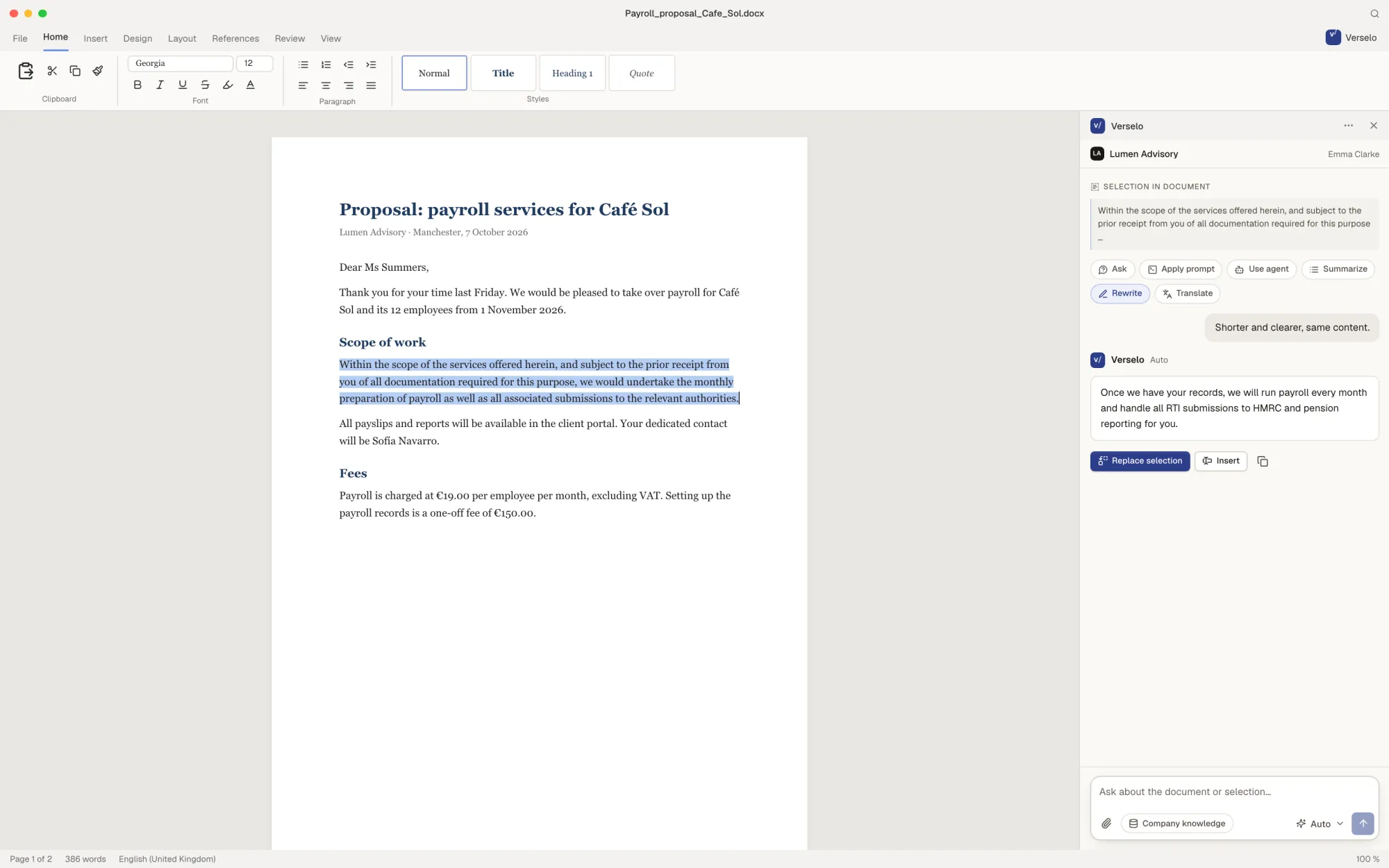
Word and PowerPoint: select, rephrase, insert
Select a paragraph and choose: ask, apply a prompt, use an agent, summarise, rephrase or translate. You insert the result or let it replace the selection. Whole documents or slides from your company template go in directly as well.
- Prompts and agents from your workspace
- Insert or replace the selection
- Documents and slides from the company template
Excel: have a range explained
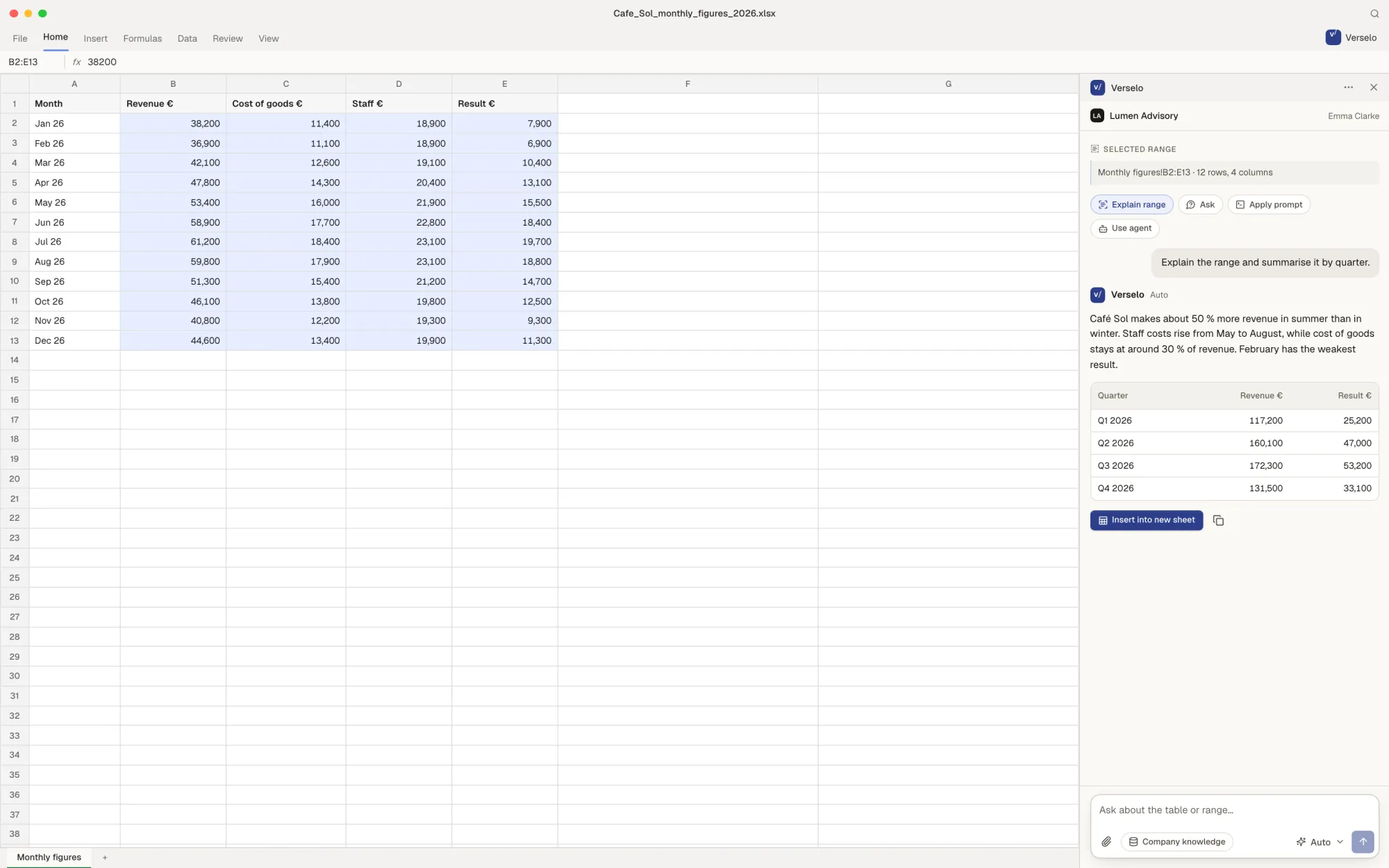
Select a range and ask what it shows. Verselo explains what stands out and, if you want, returns a results table that you insert into a new sheet. Your source data stays as it is.
- Explain the selected range
- Results table in a new sheet
- Prompts and agents in Excel too
Outlook: summarise the email, draft the reply
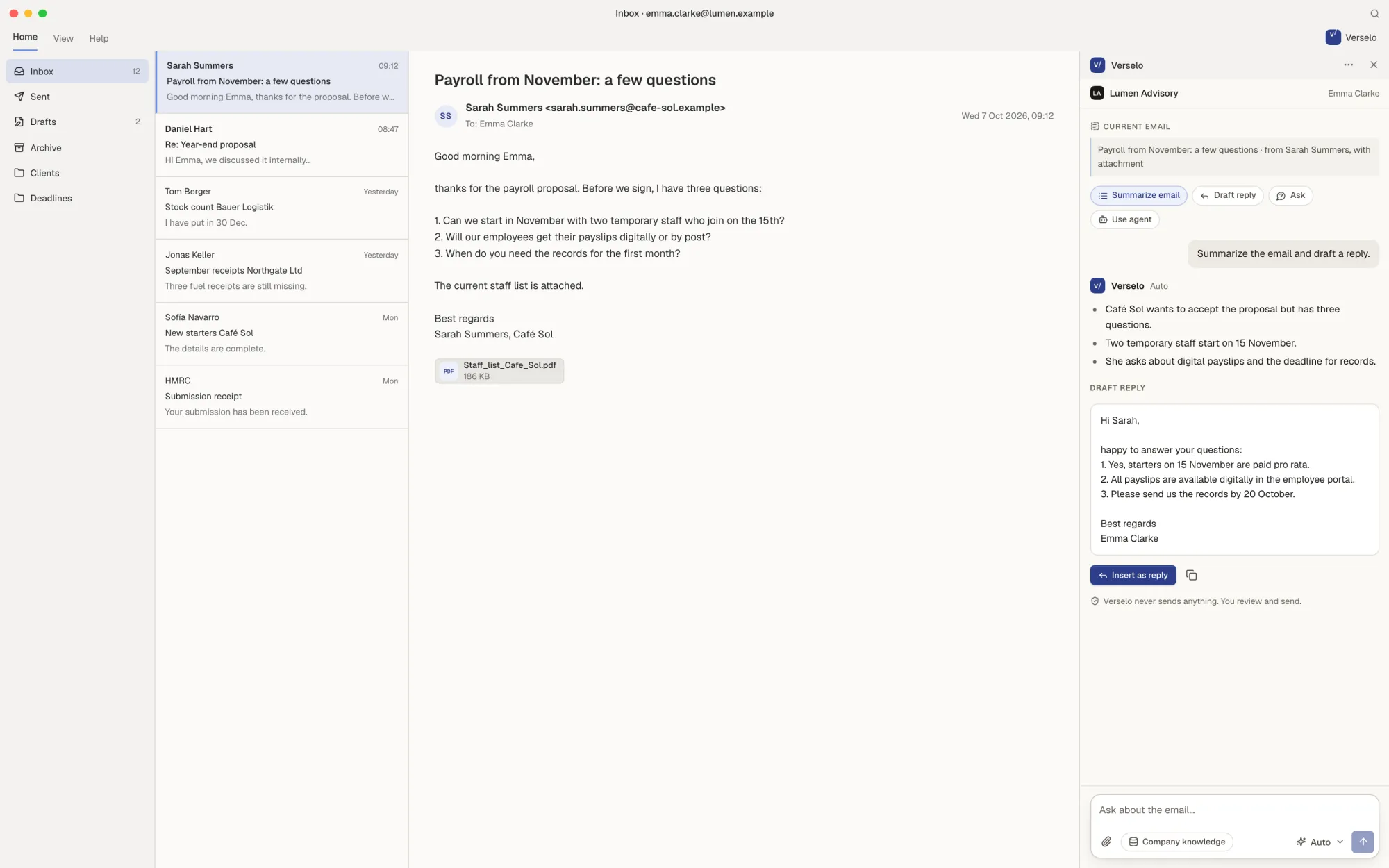
Verselo summarises the email you have open and drafts a reply. You insert the draft as a reply, check it and send it yourself. The add-in does not send emails and does not read your whole mailbox.
- Only the open email
- Reply draft ready to insert
- Sending stays with you
Rollout: the admin decides
The admin enables the add-in for the workspace and picks the apps. They download the manifest in Verselo and hand it to IT. Your team signs in with an email code, Microsoft or Google. The admin sees active sessions and can revoke them one by one. The add-in runs in the desktop and web versions of Office, not in the mobile Office apps.
- Enable each app separately
- Sign-in by email code, Microsoft or Google
- See and revoke sessions
- Input
- Enable the add-in for Word, Excel and Outlook, leave PowerPoint off for now
- Action
- Download the manifest and hand it to IT
- Result
- The team signs in to Office with their Verselo account and the admin sees every active session
Frequently asked questions
Is Verselo available as an add-in for Word, Excel and Outlook?
Yes. Verselo is available as an add-in for Word, Excel, PowerPoint and Outlook, in the desktop and web versions of Office. It opens as a sidebar and works with what you select: ask, summarise, rephrase, translate, and use prompts and agents. It does not run in the mobile Office apps. Your workspace admin switches it on.
What can the Verselo add-in do in Excel?
In Excel, Verselo explains a selected range, such as the variances in one column or how monthly figures develop. If you ask, Verselo produces a results table, for example monthly values rolled up into quarters, and inserts it into a new sheet. Your source data stays unchanged. Without a selection, the add-in reads nothing from the file.
Does the add-in read my whole document or mailbox?
No. The Verselo add-in reads only what you select, and in Outlook only the email you have open. It does not see the rest of the document or your mailbox. In Outlook, Verselo summarises the email and drafts a reply. It cannot send: you insert the draft, check it and send it yourself.
How does IT roll out the Office add-in?
The admin enables the add-in in Verselo, picks the apps, for example just Word and Outlook, and downloads the manifest that IT distributes across the company. The team signs in with an email code, Microsoft or Google. In the admin area you see every active add-in session and can revoke any of them.
See it on your own task.
Take a real client email and a spreadsheet you have to explain every month. On the call we use them to show you what the add-in takes off your plate day to day.